
Run your first project
In this lesson you will run one complete loop in Drum: opportunity, proposal, project, time, and invoice.
It takes about 10 minutes. You need a Drum trial at app.getdrum.com and the sample opportunity named Example Drum Opportunity.
Open the sample opportunity
Sign in to Drum.
Click Opportunities.
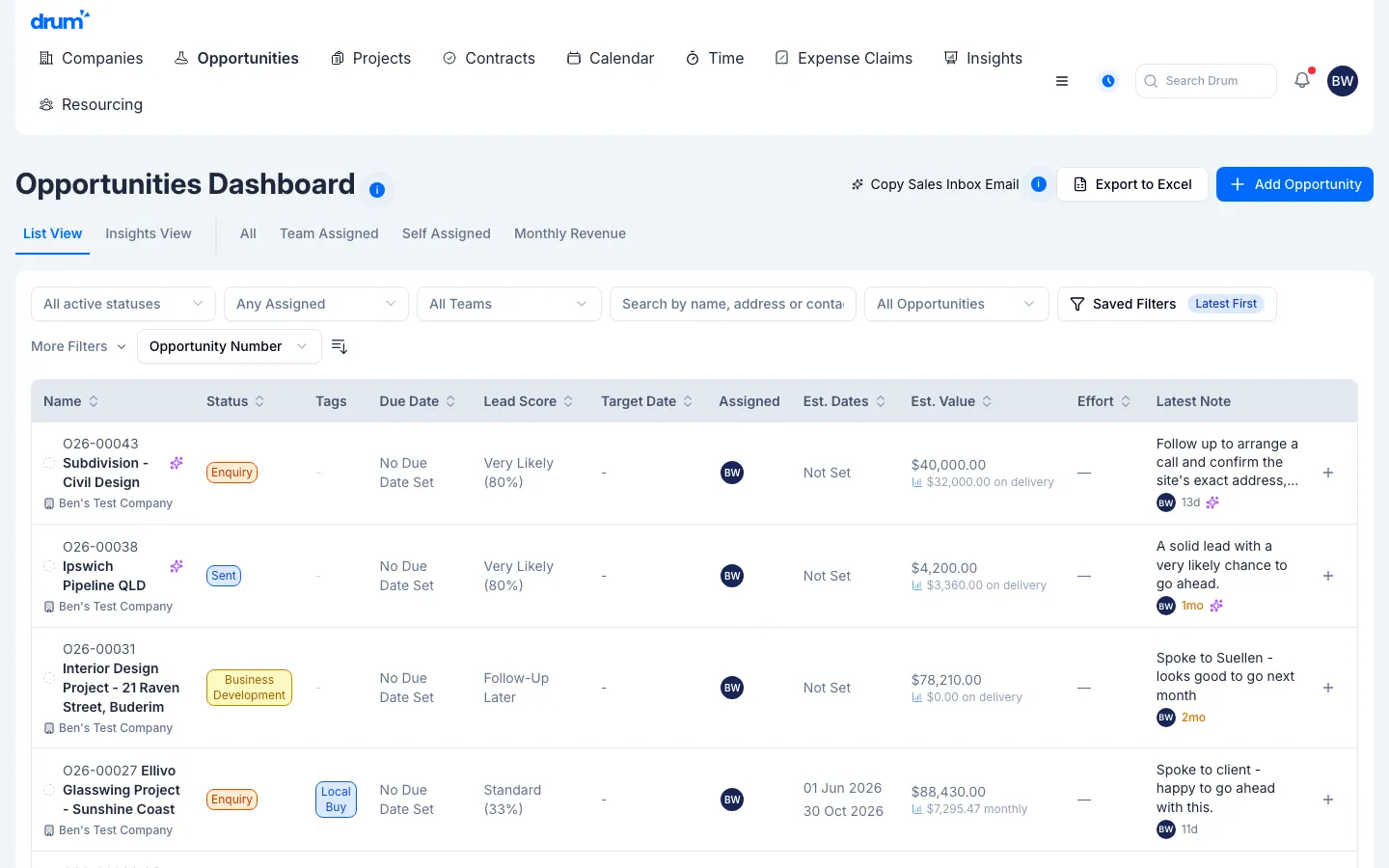
Click Example Drum Opportunity.
You should see the opportunity, with its tasks on the Work tab.
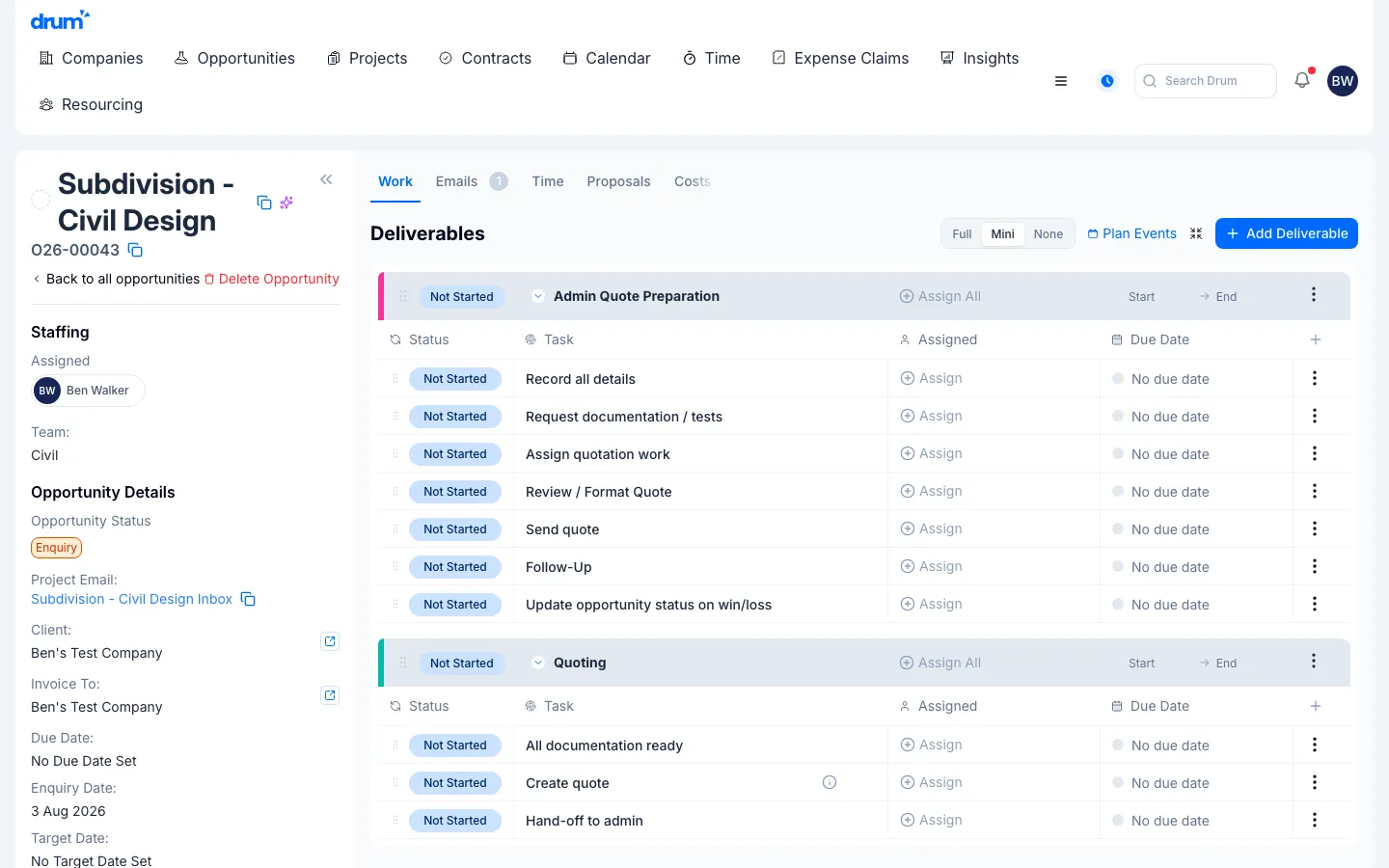
You have the sample open.
Create the proposal
Click Proposals.
Click Add Proposal.
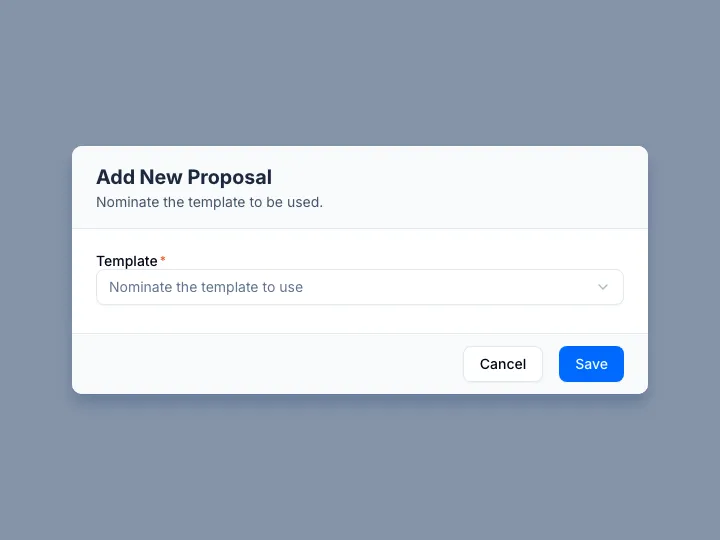
Open Template. Choose the first template.
Click Save.
You should see the new proposal, with a contract value and line items from the template.
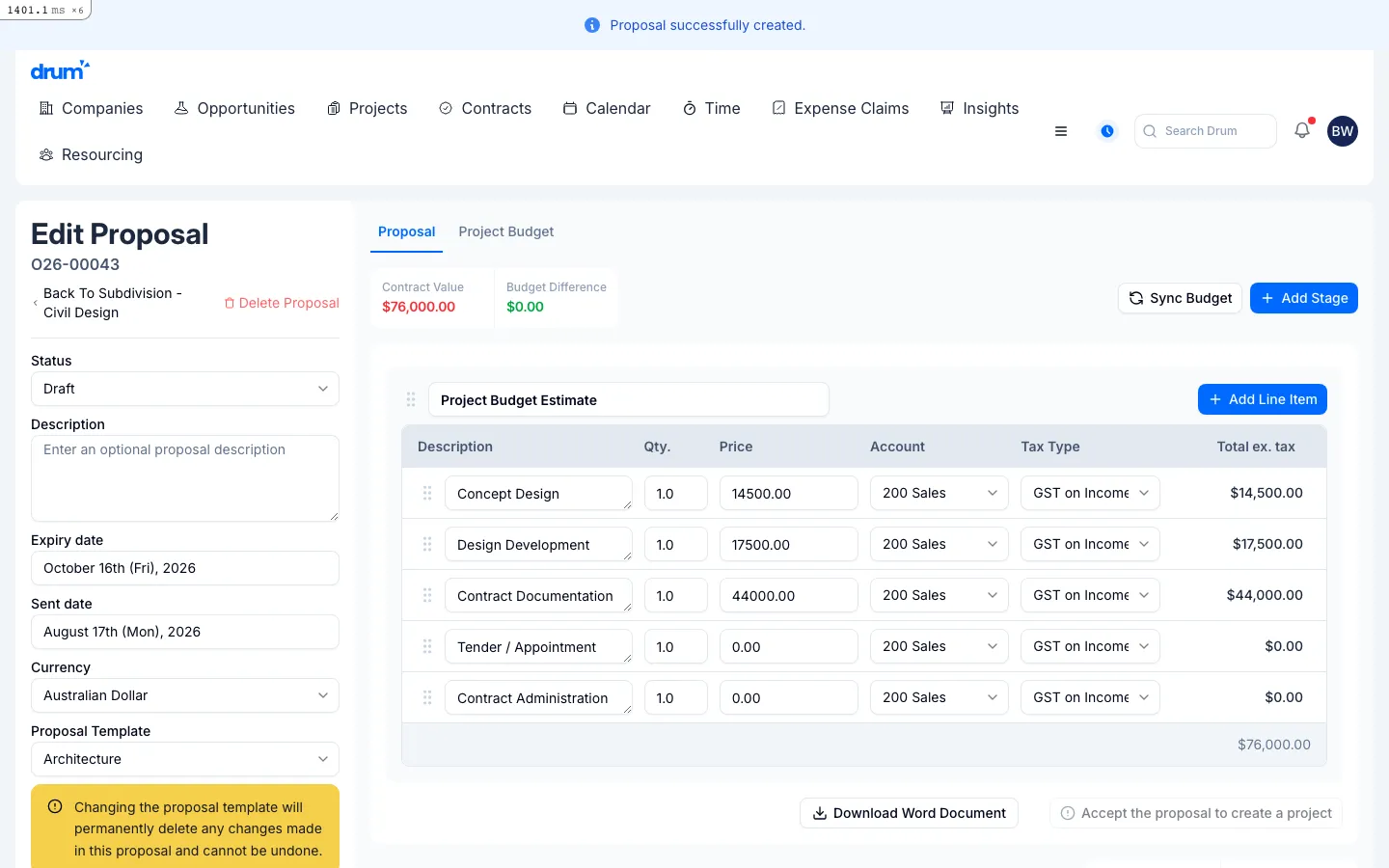
The proposal is ready.
Convert it to a project
In Status, choose Accepted.
Click Accept the proposal to create a project.
You should see a preview of the project structure.
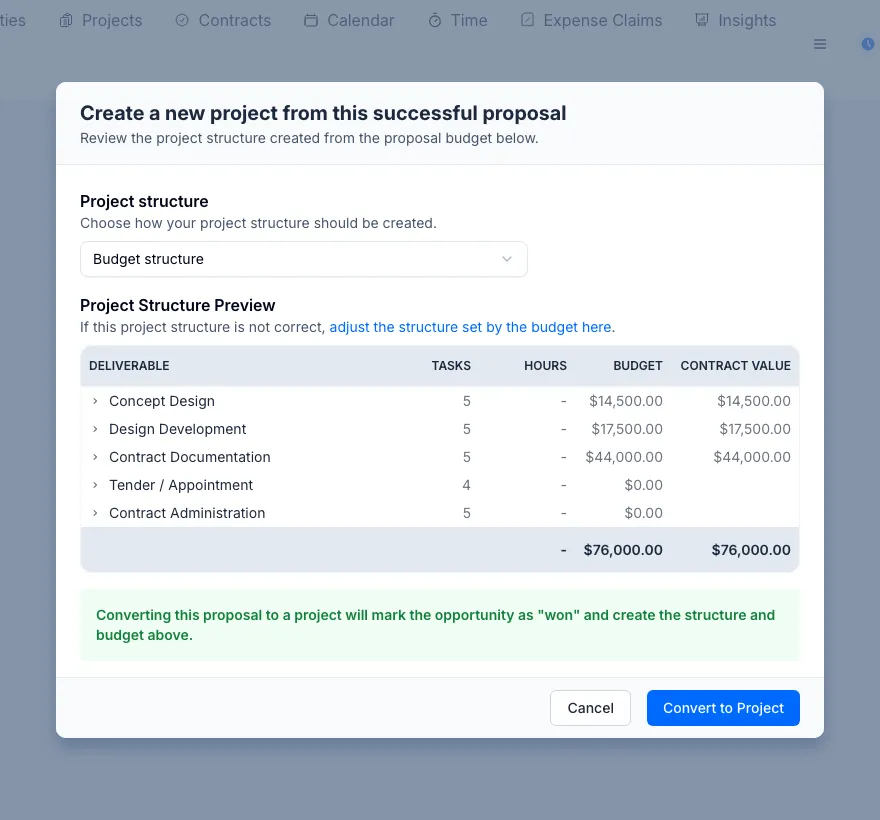
Click Convert to Project.
Drum opens the new project. The opportunity is marked won.
You have a project to work on.
Log time against a task
On a task, open the three-dot menu.
Click Add Time.
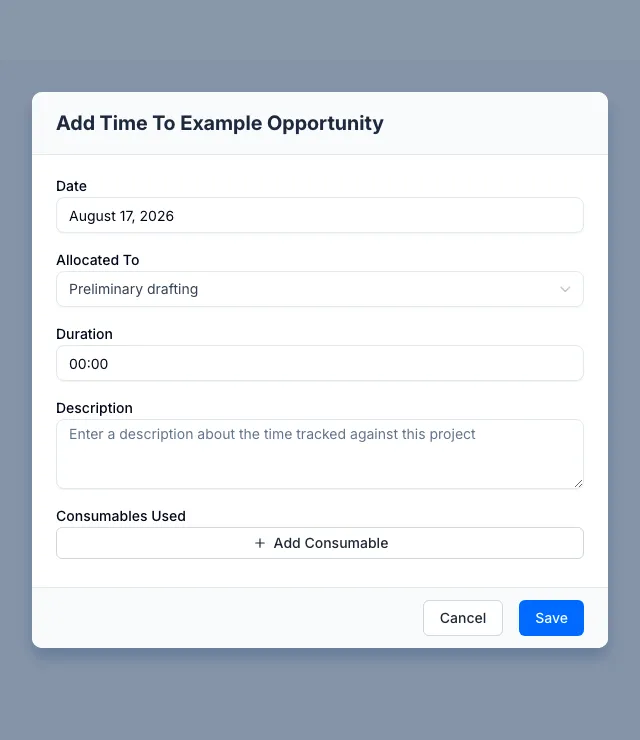
Set Duration to 1:00.
Click Save.
You should see the hour on the project. Cost to date updates.
You have logged time.
Create the invoice
Click Invoices.
Click Add Invoice.
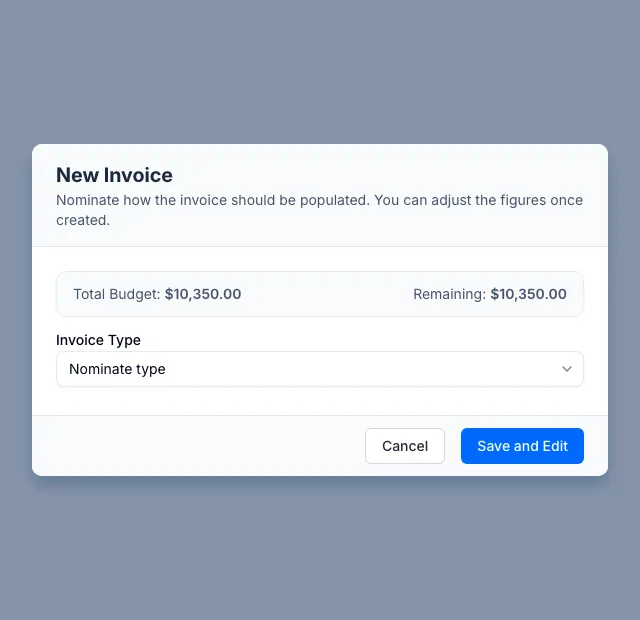
In Invoice Type, choose Billable Time and Costs.
Click Save and Edit.
You should see the new invoice, with the time you logged included.
You have billed the work.
What you just did
You sold, planned, timed, and billed one job:
- Opened an opportunity
- Created a proposal
- Converted it to a project
- Logged time
- Raised an invoice
That is the loop you will use in Drum.
What to do next
Use a how-to when you have a real job to finish:
- Invite users
- Set rates and other business data
- Create a project from the dashboard
- Add time on the timesheet
If you want the idea behind proposals and budgets, read Understanding proposals and budgets.